
iPhone
Classic interface
Soft raised surfaces and the navigation you know from earlier versions. Your styles, themes and saved texts are the same in both interfaces.
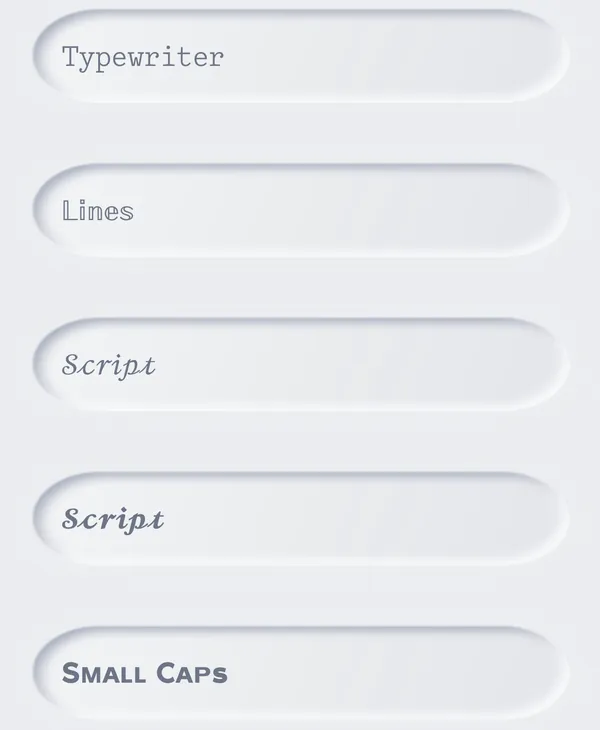
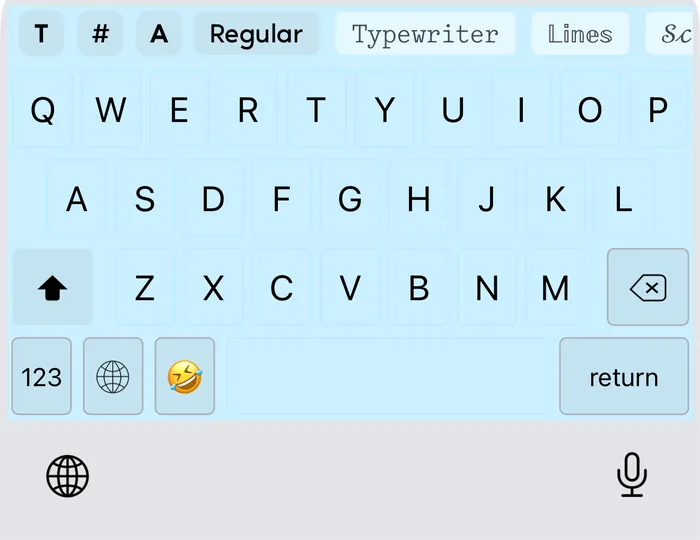
No need to come back to a website for every message. Fonts & Tags adds the styles, your saved texts and tags, and your own keyboard look to the keyboard on iPhone and iPad.

The demo shows the Fonts & Tags keyboard on photo backgrounds while phrases are typed in the Lines, Script Bold, Gothic and Filled Square styles, next to a kaomoji and a photo turned into text art.
The styles in the demo are real Unicode text, the same the keyboard types.
Type a phrase, pick a style and copy it. The same styles live in the Fonts & Tags keyboard.
Type something to see the styles.
On iPhone you can choose the Classic or the new interface. On iPad the app uses the new interface with a sidebar.
Soft raised surfaces and the navigation you know from earlier versions. Your styles, themes and saved texts are the same in both interfaces.
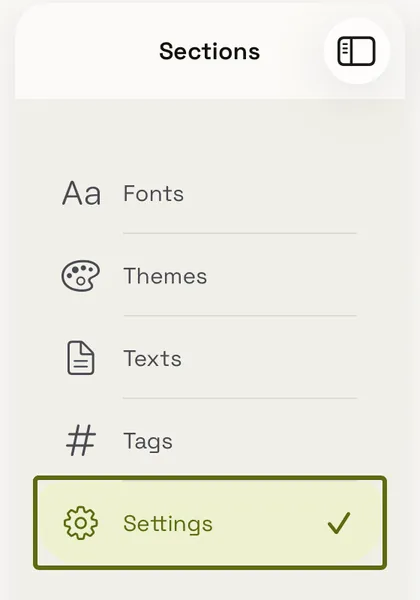
Fonts, themes, texts, tags and settings in one tab bar, with a choice of colour palettes and light or dark appearance. On iPad the sections sit in a sidebar next to the content.
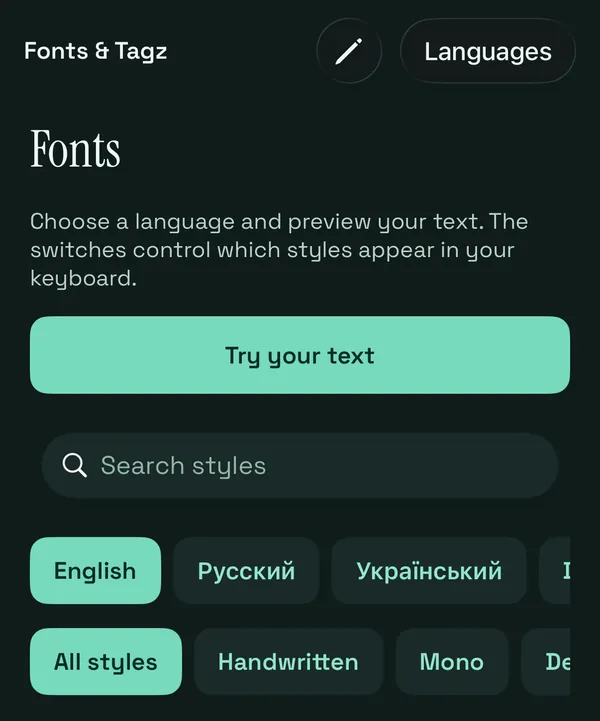
44 styles for English, French, German, Italian and Spanish layouts and 21 for Russian and Ukrainian. Every letter is a Unicode character, so the text stays styled wherever you paste it.
Try the font generator →A panel of kaomoji, symbols and Egyptian hieroglyphs: bears ʕ•ᴥ•ʔ, lenny faces, cute faces, zodiac signs, frames and more. Search helps you find the right emoji.
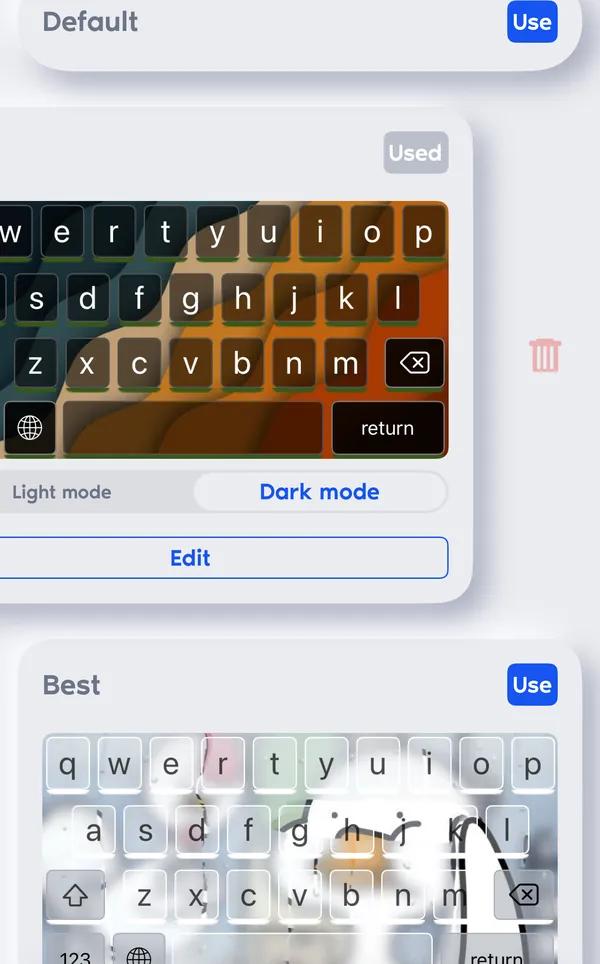
Browse kaomoji →Pick colours, gradients or a photo for the background, then set up keys, borders and shadows, with separate light and dark versions. Save several designs and switch between them in one tap.
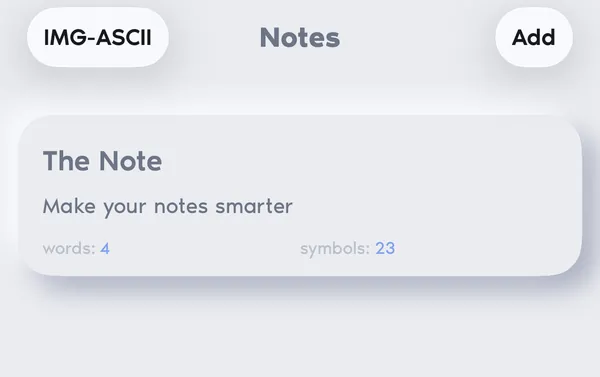
Save phrases, replies and hashtag sets in the app and insert them from the keyboard in one tap, without switching apps.
Turn a photo into a picture drawn with Braille characters and set how many characters wide it should be. Copy the result or share it anywhere.
Try it in your browser →
Download Fonts & Tags from the App Store on your iPhone or iPad.
Open Settings → General → Keyboard → Keyboards → Add New Keyboard and choose Fonts & Tags.
In any text field, touch and hold the globe key and pick Fonts & Tags.
The styles on this page are not fonts in the usual sense. Unicode, the standard every phone and computer uses for text, includes whole alphabets of special letters: mathematical bold and script, letters in circles and squares, small capitals, and marks that draw lines through or under a letter. The generator swaps each letter of your text for its styled twin, so what you copy is still text.
That is why the result survives copy and paste into a bio, a caption, a comment or a chat, where you cannot pick a font. It also means the look depends on the fonts of the device that shows the text: the same letters can look slightly different on iPhone and on Windows.
Fancy text works best in short places that should stand out: an Instagram or TikTok bio, a name, a gaming nickname, a Discord status, a heading in a post. For long text, keep plain letters: styled characters are harder to read, and screen readers used by blind people may read them letter by letter or skip them.
Most letter styles cover only A–Z and digits. Styles that add marks to letters, such as strikethrough, underline, dots, frames and glitch, work with Cyrillic, Greek and other alphabets. The generator shows a note when some letters of your text stay plain.
Type your text in the box, find a style you like and press Copy. Then open Instagram, TikTok, a chat or any other app, tap the text field and choose Paste. The styled letters are ordinary Unicode characters, so they stay styled after pasting.
The app or device you paste into has no font with that character. Most styles work on current iPhone, Android, Mac and Windows systems, but older devices and some games show boxes or question marks. Try another style or check how the text looks before you publish it.
Bold, cursive, gothic, bubble and most other letter styles exist in Unicode only for the Latin alphabet and digits. Styles that add lines, dots or frames to each letter work with any alphabet. Choose the Cyrillic filter to see them.
Yes. Every style on this site is free to copy, with no sign-up. Fonts & Tags, the keyboard for iPhone and iPad, is free to download from the App Store.
In the text fields of most apps on iPhone and iPad: messengers, social networks, notes and mail. iOS does not allow third-party keyboards in some fields, such as passwords; there the system keyboard appears instead.
A keyboard with text styles, kaomoji, your own themes, saved texts and tags, and photo to text art.